
Using the guest payment facility
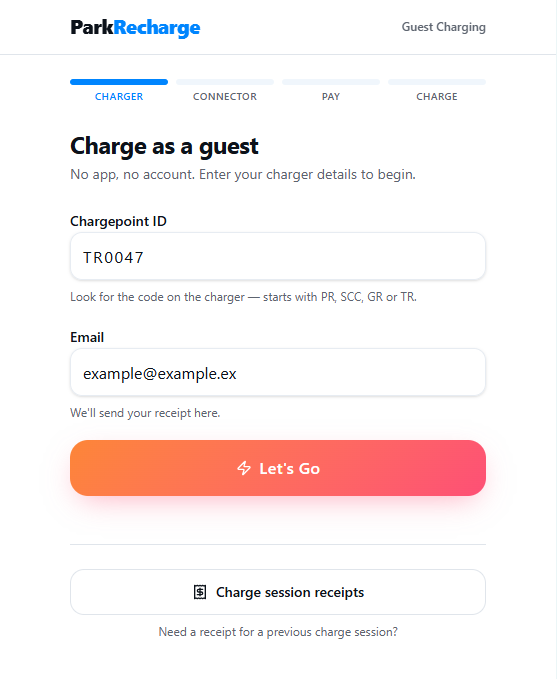
Go to parkrecharge.me and enter the Chargepoint ID on the charger sticker (including the letters), then enter your email address. Before selecting “Let’s Go,” make sure your vehicle is unplugged from the charger.
----------------------------------------------------------------------------------------------------------------
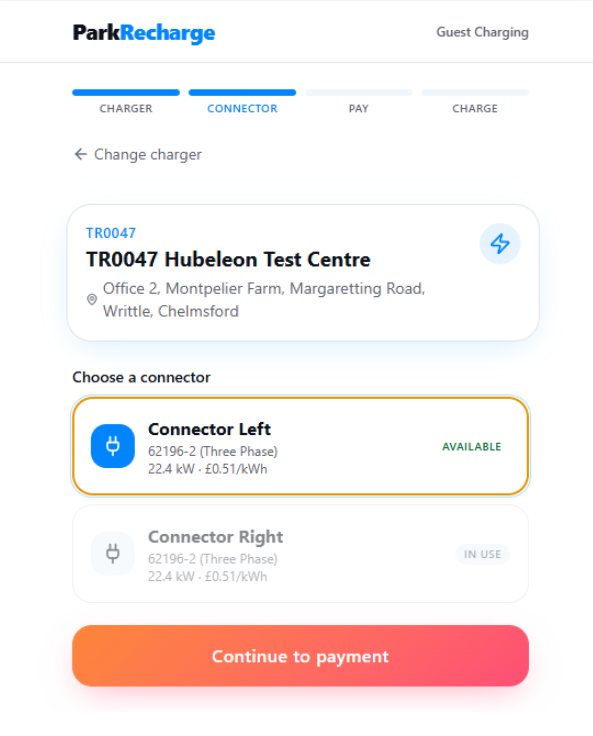
Select the connector you want to use. On some chargers, connectors are labelled “Left” and “Right” (as shown below). On others, they may have their own ID numbers or be labelled by connector type, such as “CCS” or “CHAdeMO.”
Please Note: If your chosen connector shows “In Use,” unplug the cable, go back to the previous page, and press “Let’s Go” again to refresh the charger status.
Then click “Continue to Payment.”
----------------------------------------------------------------------------------------------------------------
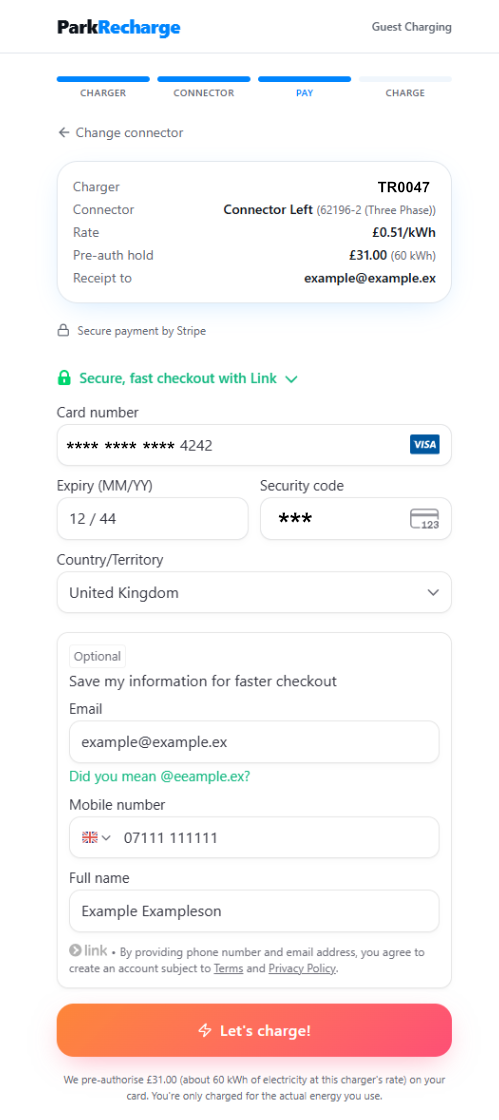
Check that the Chargepoint ID and selected connector shown at the top of the page is correct.
Below this you will see the tariff rate associated to this chargepoint and the value that will be pre-authorised on your card.
In the example below the rates shown are 51p per kWh and £31 pre-authorisation.
Prices are set by the charge point owner, not ParkRecharge.
Enter your payment details. You can also choose to save your details with our payment provider for future use if you wish. Then click “Let’s charge!”
----------------------------------------------------------------------------------------------------------------
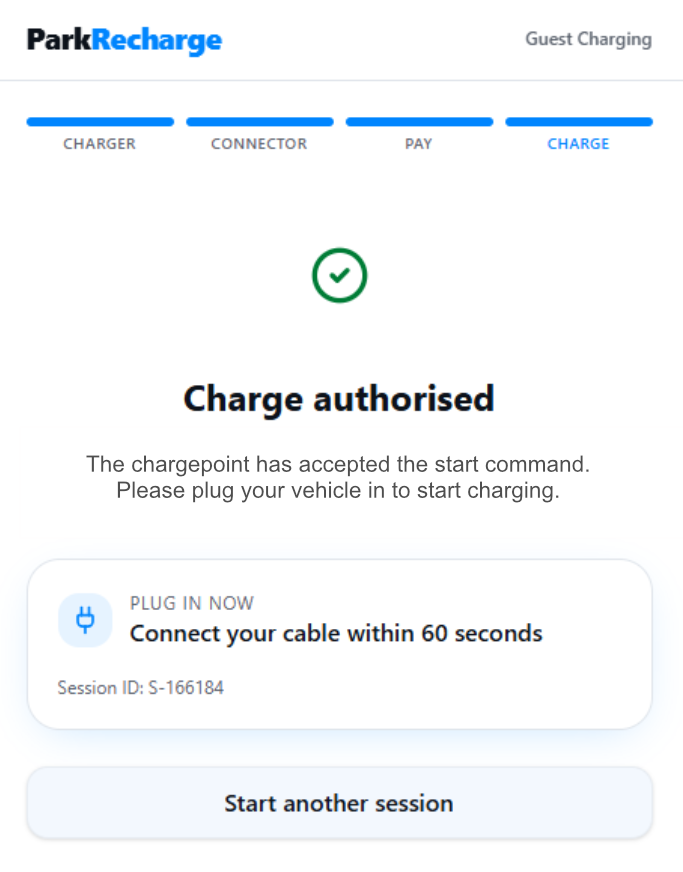
Once your payment has been processed you will see a confirmation that the charge has been authorised. It is now time to plug your cable in to the chargepoint.
----------------------------------------------------------------------------------------------------------------
Ending a Charging session
Remove the cable from your car first
If you are not familiar with how to unlock the cable from your vehicle, the most common methods for disconnecting are;
- Unlocking the vehicle
- Double pressing the unlock button on your vehicles keys
- Holding the unlock button on your vehicles keys
- Pressing an unlock button on the dashboard of the vehicle
- Pressing an unlock button from the vehicles app
Remove the cable from the charger
Once the charger detects the cable is no longer connected to the vehicle it will also unlock the cable.
----------------------------------------------------------------------------------------------------------------
FAQ's and useful information
What is a Pre-Authorisation and what am I paying for?
A pre-authorisation is an temporary hold placed on your bank account that reserves a maximum value to pay for a service. The value of the pre-authorisation does not leave your account but is converted into a payment at the end of your charging session to reflect the actual cost of charging.
As an example, if we pre-authorise your account for £31 on a chargepoint that chargers 51p per kWh, the maximum value you would be charged for that session is £31 for receiving 60kW.
Alternatively, if you were to unplug at 40kW, your account would be charged £20.40 (40kW x 51p) and the hold would be released on the remaining £10.60 of the pre-authorisation.
Most pre-authorisations are processed within 24 hours of the transaction occurring, however sometimes this process can take longer due to factors detailed below;
- Bank preferences - Many banks handle payment processing differently. In some cases the bank will show the pre-authorisation and payment as soon as they have been processed by our system, however others may show both the pre-authorisation and payment days apart as the transaction is updated on their internal system.
- International cards - Payments made from international cards often take longer to process due exchange rate processing.
- Offline Charger - In the event that the charger looses connection or trips during your charging session, we may be delayed in receiving the final meter readings for the charger and therefore delayed in finalising your transaction. We regularly alert chargepoint owners and maintenance providers of offline chargepoints and request for these issues to be resolved as quickly as possible.
Why does it say the connector I am trying to use is 'In Use'?
Most chargers switch their connector status to 'In Use' as soon as a cable is connected, this can then prevent some models of charger from accepting a start request. Allowing a user to select the connector and continue can result in errors while starting.
To avoid this, make sure you do not connect to the charger until you have completed the payment process.
How can I get a receipt for my transaction?
Please refer to this guide for accessing VAT charging reciepts.
Seeing the "The charge point network did not respond in time" Error message
This error could be a result of one of 3 issues;
- Incorrectly entered ChargepointID - Please confirm the ID you have entered matches the ID number printed on the ParkRecharge (or Park & Recharge) ID sticker. Some single socket chargers may be installed on back to back posts with individual ID numbers - confirm you are entering the ID number associated to the connector you have chosen.
- Mobile connectivity issue - If your mobile signal is weak or if you are switching between GSM and WiFi, the page may be interrupted. Please try again and if possible switch to a stable WiFi connection.
- Charger Offline - Although the charger may appear to be powered (i.e. screen on, LED lights on, etc.), it may have temporarily lost it's independent internet connection. The charger may need to be rebooted - if the charger is at your workplace, you may be able to contact the relevant team to reboot the charger directly, however the ParkRecharge support team (0808 186 1851) can also contact the site maintenance provider on your behalf.
For more information about ParkRecharge services, please refer to our knowledge base
Having Issues?
Our customer support team are here to help!
Phone: 0808 186 1851
Email: support@parkrecharge.net
Online: https://parkrecharge.freshdesk.com/support/tickets/new
Was this article helpful?
That’s Great!
Thank you for your feedback
Sorry! We couldn't be helpful
Thank you for your feedback
Feedback sent
We appreciate your effort and will try to fix the article